Home page and website menu
The "Site Home and Menu" section is located in Settings, just below the Site Mode. Here you can manage the style, home page, your pages, and menu.
Who is this suitable for?
For all modes. For the landing page, this is the main tool. For the store and board, it's a way to add "About Us," "Delivery," "Contacts," and design the homepage.
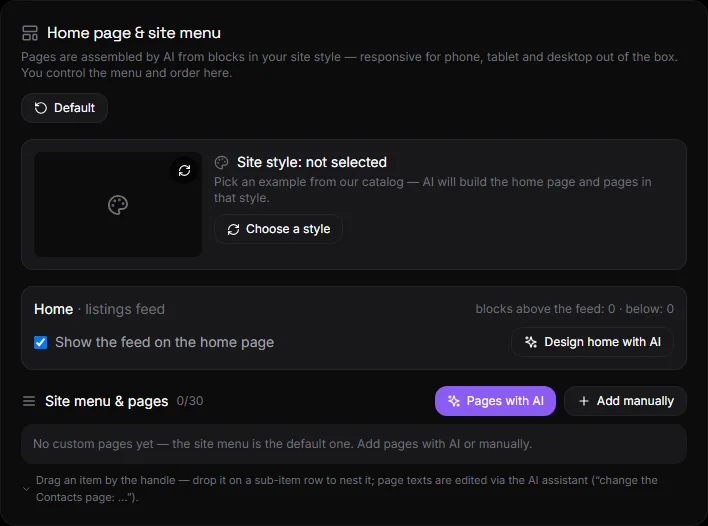
What does the block consist of?#
- Site Style — a preview of the selected style with a video, "Select Another" and "Delete" buttons. See Styles.
- Home — site mode, number of blocks above and below the feed, "Show feed on home" switch, "Design home with AI" button.
- Site menu and pages - list of pages, buttons "Pages with AI" and "Add manually".
- By default, the button is at the top of the block.
Home#
The main page consists of three parts: blocks at the top, a feed (ads, products or posts), and blocks at the bottom.
- Show feed on homepage - Uncheck this box if you want the homepage to only contain blocks.
- Design a Homepage with AI — opens the assistant with a pre-built command: a hero block with the name and slogan at the top, benefits and contact information at the bottom. You can edit the command text.
- Any other changes to the main page can be made through the assistant: “add a promo stripe with a discount,” “show 8 new products above the feed,” “remove the FAQ block.”
Block types: hero, text, image, gallery, benefits, call to action (button), promo strip, product selection, categories, FAQ, contact, divider, custom HTML. All blocks are responsive and match the website theme.
Pages#
Create with AI#
- Click on "Pages with AI".
- Describe the pages you need. Examples: "Contacts and About Us," "Delivery and Payment, Warranty," "Services → Repair, Installation subpages."
- Click "Generate." The assistant will create pages from website-style blocks, populate them with text based on the website's data, and add them to the menu. The assistant's response will appear below the buttons.
If a style is selected from the catalog, the assistant takes into account its design reference: composition, images, and tone of text.
Add manually#
- Click "Add Manually".
- Enter a name, for example "Delivery".
- Optional: Write what should be on the page—the assistant will assemble the blocks. If left blank, a template with a single text block will be created.
- Select whether the page will be a top-level item or a sub-item.
- Click "Add".
Page address: /p/название-латиницей. It is created from the name automatically.
Change page text#
Via the AI assistant: "Change the Contacts page: add opening hours and a map." Or via a connected Claude/ChatGPT. See AI assistant.
Menu and submenu#
In the list of pages, each line has:
- Left handle: Drag a page up or down. Drop it on a sub-item to nest it within the same item.
- The "→ subitem" arrow makes the page a subitem of the previous item. "← move" returns to the top level. Nesting is one level.
- In menu - whether to show the page in the site menu.
- Eye - published or hidden. A hidden page cannot be opened at the address.
- Pencil - rename.
- Open on site - new tab.
- Trash — delete a page. Subitems are moved to the top level.
After making your changes, click "Save Menu." The menu will be updated immediately on the website.
On the website, the menu opens with the "⋯" button in the header. A menu item with sub-items is expanded with an arrow. There's also a menu button on individual pages.
By default#
The "Default" button returns the homepage to its normal, block-free feed and removes all pages from the menu and publication. Pages are not deleted—they can be re-enabled using the toggles.
Limits#
Up to 30 pages per site. Up to 30 blocks in each section of the homepage and on each page.
Questions and answers#
Are the pages responsive?#
Yes. The pages are assembled from blocks that automatically adapt to phones, tablets, and computers. No layout required.
How to make a page with a map or form?#
Use the "Custom HTML" block via the AI assistant: "Add a Google map to the Contacts page at..." Or embed a widget via "Codes and Widgets."
Why didn't the AI create the pages?#
Check your plan—page generation is available on plans with AI. Without AI, add pages manually with a blank description and fill them out later.
Where can I edit homepage blocks manually?#
There's no manual block editor. The homepage and pages are edited via an AI assistant or the integrated AI chat (MCP). This is intentional: every block remains responsive and consistent with the website's style.