Owner's Office: Sections and Navigation
The dashboard is where you manage your website. The dashboard address is asd.vibevox.pro/board. On the left is the section menu, and at the bottom right is the AI assistant button.
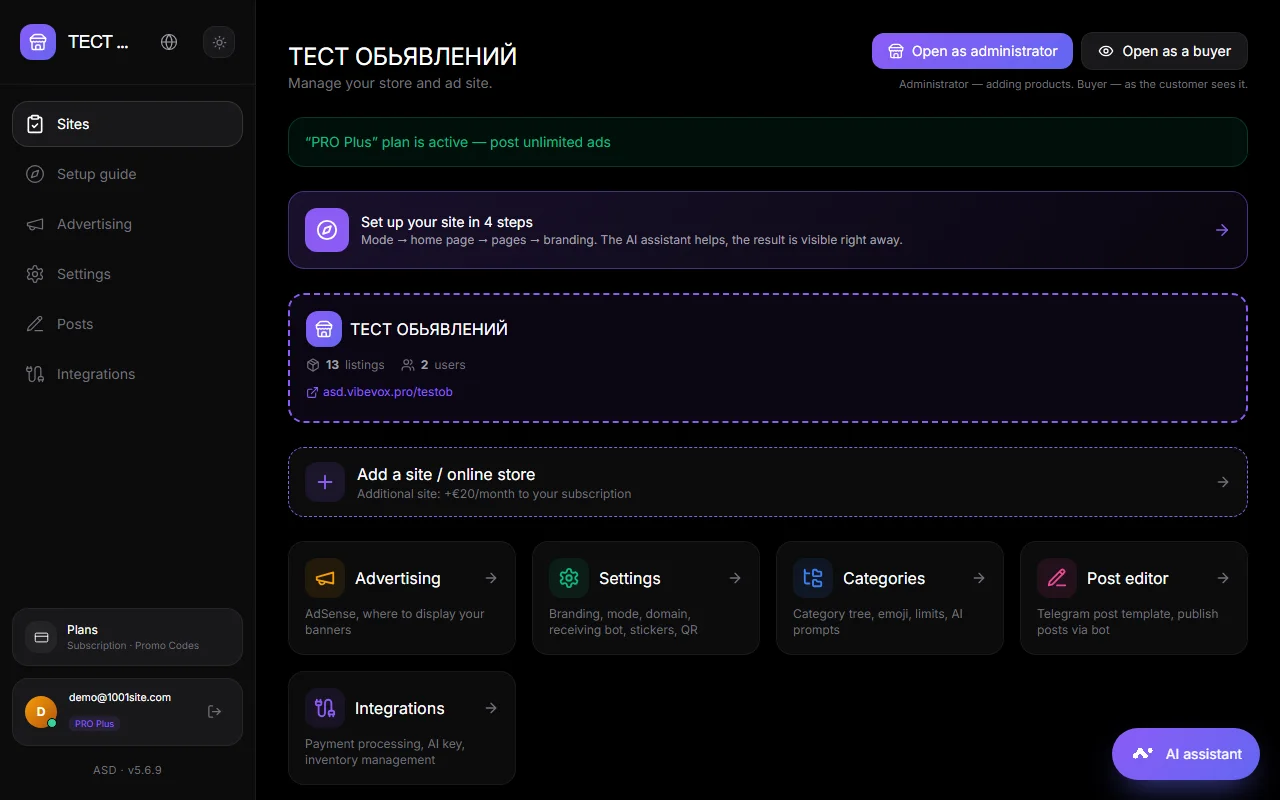
Menu sections#
| Chapter | What's inside |
|---|---|
| Websites | Dashboard home page. Your websites, pricing plan, quick links to sections, ads, and moderation. |
| Guide | Set up your website in 4 steps. See the guide. |
| Advertising | Google AdSense, advertising spaces, custom banners. See Advertising. |
| Settings | Everything about the site: address, domain, branding, stickers, mode, homepage and menu, contacts, card view, Telegram and WhatsApp, auto-publishing, SEO, AI and MCP, administrators, codes, and widgets. |
| Posts | Post editor for Telegram, WhatsApp, and landing pages. See Posts. |
| Integrations | Payment acceptance, order notifications, inventory control, and image storage. See Integrations. |
| Tariffs | Subscription, promo codes, payment. See Rates. |
At the bottom of the menu is your email and plan, a logout button, and the version number.
Main office#
- Open as administrator — the site opens with owner rights: you can add and edit products directly on the site.
- Open as a buyer - the site as the visitor sees it.
- Tariff card - what is active and how many ads are available.
- Set up a website in 4 steps – a guide. Once completed, it will be converted into a short link.
- Your sites are site cards. The active site is highlighted with a dotted border. Click on another site to switch. Next to it is the "Add site/online store" button.
- Announcements and moderation — list of announcements or products, filters, and actions. See Announcements and Products.
Section "Settings"#
On the left, in the "Settings" section, there's a list of subsections. Click on one, and the page will scroll to the desired section. The order is as follows:
- Address and QR
- Your own domain
- Branding and language
- Stickers
- Site mode
- Home and menu
- Contacts
- Type of cards
- Telegram and WhatsApp
- Auto-publishing
- Advertising
- SEO and promotion
- AI and MCP
- Managers
- Codes and widgets
A panel with a "Save" button is always visible at the bottom of the page. Some blocks are saved immediately using their own button (style, pages, domain, Telegram, WhatsApp). If after making changes, the bottom says "Changes will take effect after saving," click "Save."
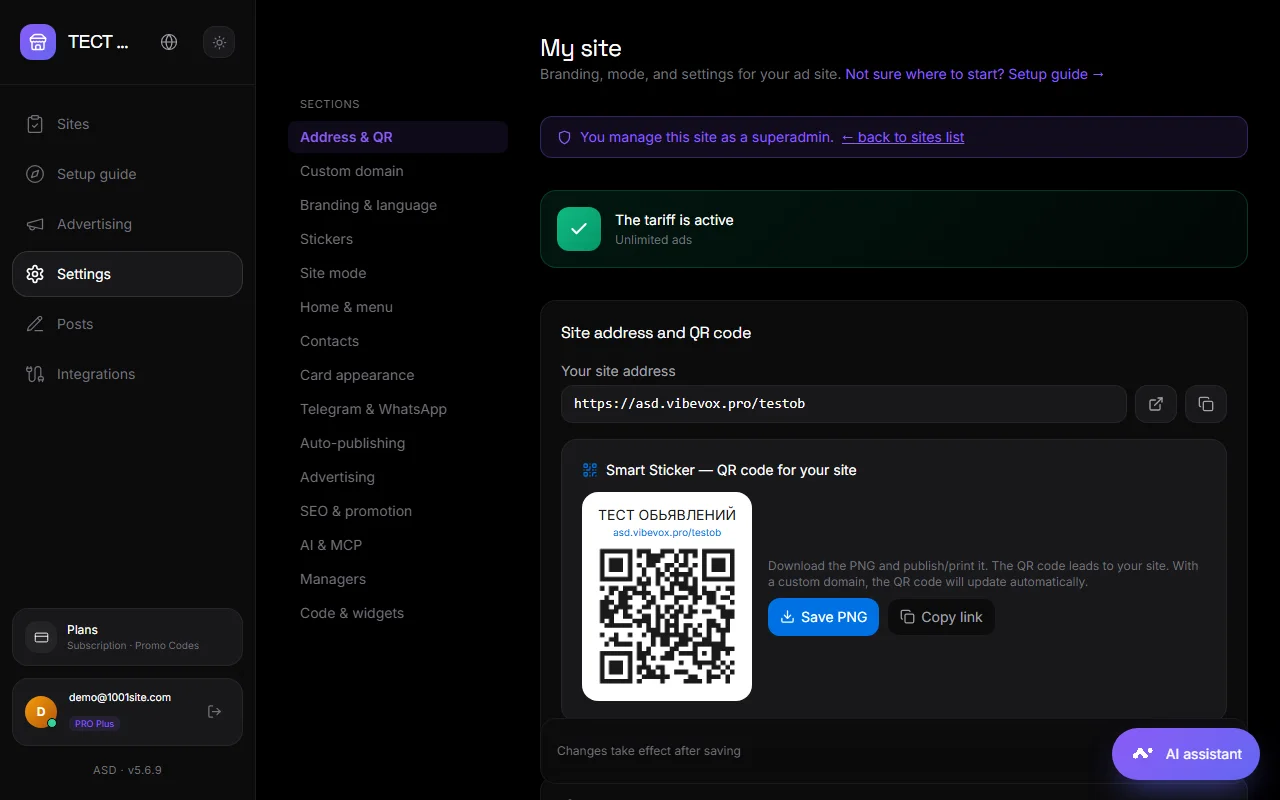
AI assistant#
The "AI Assistant" button is located in the lower right corner of every dashboard page. The assistant knows which section you're currently viewing and offers suggestions based on that section. See AI Assistant.
Top panel#
Top right: switching tariffs, account interface language (107 languages), light or dark theme, exit.
Questions and answers#
How do I switch to another website?#
On the main dashboard, click on the card for the desired website. All dashboard sections will switch to that website.
Where can I change my password?#
Via "Forgot your password?" on the login page. A reset link is sent to your email.
What does the site administrator see?#
The same applies, except for the payment and site deletion sections. See Site Administrators.