Advertising on the site: AdSense and banners
The "Advertising" section in your account offers three ways to make money on your site: Google AdSense, your own banners, and paid advertising from advertisers.
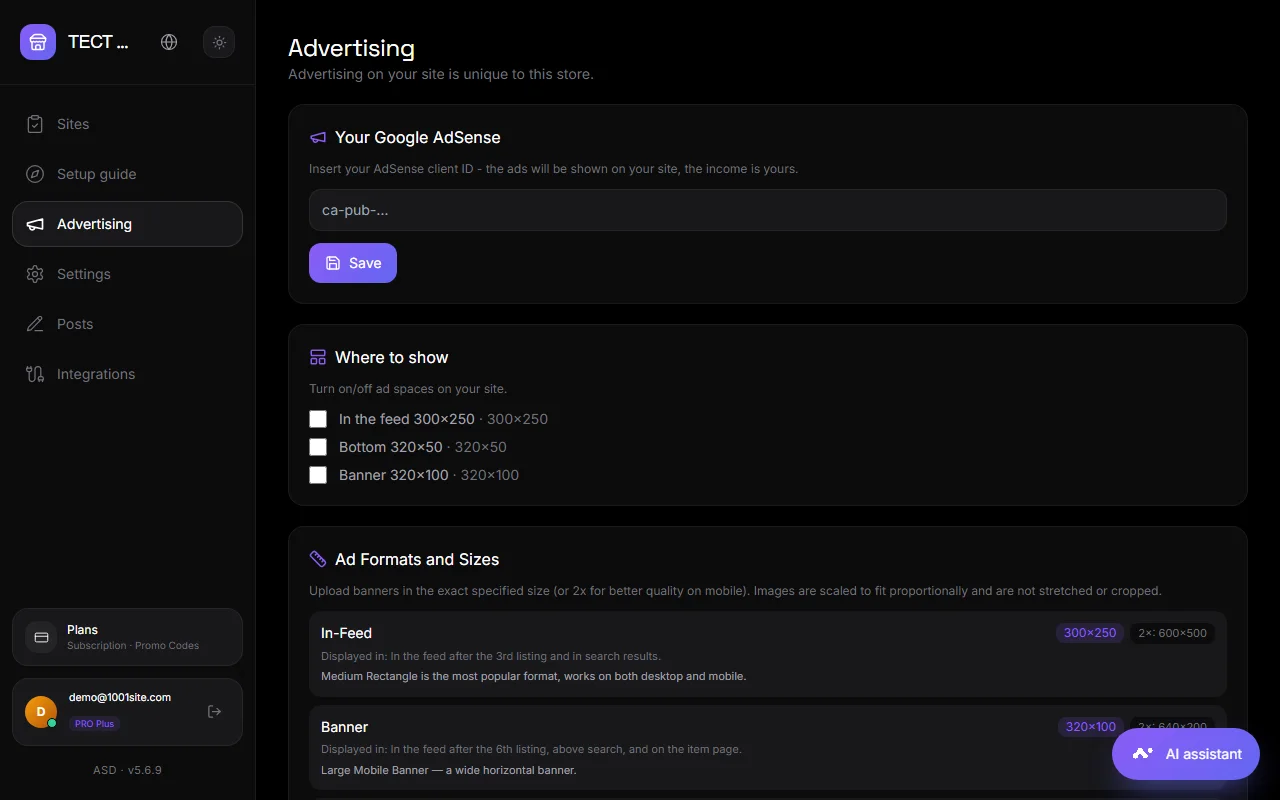
Google AdSense#
Enter your AdSense client ID (like ca-pub-…) and save. Google ads will be displayed on your site, and the revenue will be yours. You need an approved AdSense account; approval usually requires your own domain and a fully-functional website.
Advertising spaces#
Formats: 300×250 in the feed, 320×50 at the bottom (sticky strip), 320×100 banner. Each slot can be enabled and disabled separately. The slots are used for both AdSense and your banners.
Your banners#
- Click "Add".
- Upload an image, specify the link (where it leads) and the impression limit.
- Save. The banner rotates in the selected locations until the limit is reached.
Impressions are counted on the visitor's device. The impression counter is saved when editing the banner. The banner can be replaced or removed.
Paid advertising from advertisers#
The advertiser buys their banner impressions on your website: you provide them with a link from the "Paid advertising from advertisers" section, they upload the banner, and pay. Impression rates are set in Integrations → Payment → "Internal advertising · Paid ads." Payments are sent to your Stripe or Monobank.
Questions and answers#
Ads are not showing#
Check that at least one ad slot is enabled and that the banner is still showing impressions. For AdSense, make sure the account is approved and the client ID is correct.
Is it possible to display a banner in only one category?#
No, the banners are site-wide. For categories, use the promo strip or the main page block via the AI assistant.