Branding: name, logo, color, language, and stickers
Branding is everything that makes a website yours: name, logo, colors, language. Settings → "Branding and Language," then "Stickers" and "Address and QR Code."
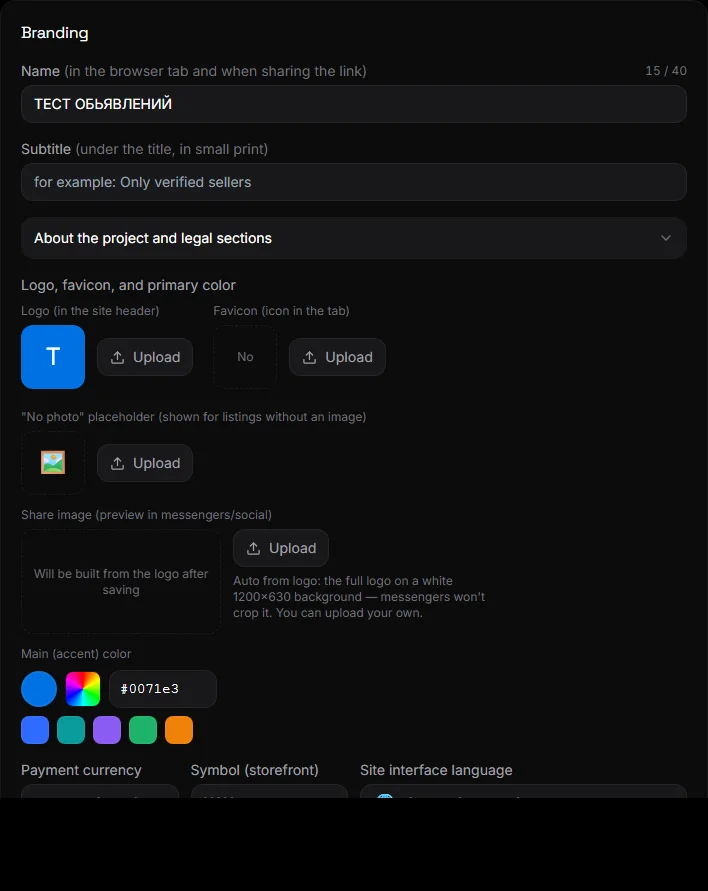
Website address and QR code#
The "Website Address and QR Code" block: your address with a "Copy" button, a "Open Website" button, and a smart sticker with a QR code —an image with your logo and a QR code for your website. Download the PNG and print it on business cards or share it on social media. If you later connect your domain, the QR code will update automatically.
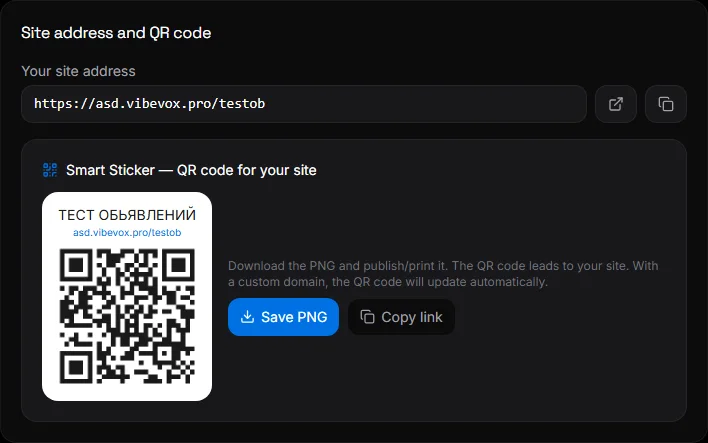
Title and subtitle#
- Title – in the website header, in the browser tab, when forwarding a link. Up to 40 characters.
- A subheading is a small line below the title, such as "Verified Sellers Only."
Logo, favicon, and color#
- The logo is the image in the website header. A PNG with a transparent background is preferred. The logo is displayed without a border or cropping.
- A favicon is an icon that appears in a browser tab. It can be a square, PNG, or SVG.
- The "no photo" placeholder image is for ads without a photo. If left unspecified, the default image is displayed.
- A forwarding image is a preview that appears when a website link is shared via messenger or social media. It's automatically generated from a logo on a white background, 1200x630 pixels. You can upload your own.
- The primary (accent) color is the color of buttons and highlights. Choose from the palette or enter a color code, such as
#0071e3. The preview updates immediately.
The entire website theme (background, cards, fonts, dark and light versions) can be customized using a style from the catalog or an AI assistant: "create a dark theme with my color," "pick a font." See Styles.
Currency and language#
- Currency is the price displayed on the storefront. Payment currency is set separately in Integrations → Payment.
- The website interface language is one of 107 languages or "Auto - visitor's browser language." All website text is translated. Right-to-left languages are supported.
Interface text can be redefined: for example, renaming the "Add to Cart" button to "Order." The AI assistant can do this with the command "rename button...".
About the project and legal sections#
The "About the Project and Legal Sections" drop-down block contains the text "About the Project," "Privacy Policy," "Terms of Use," "Contacts," and "Accessibility Statement." Each section has a "show on website" toggle. The texts are visible in the website menu → "About the Project."
Stickers#
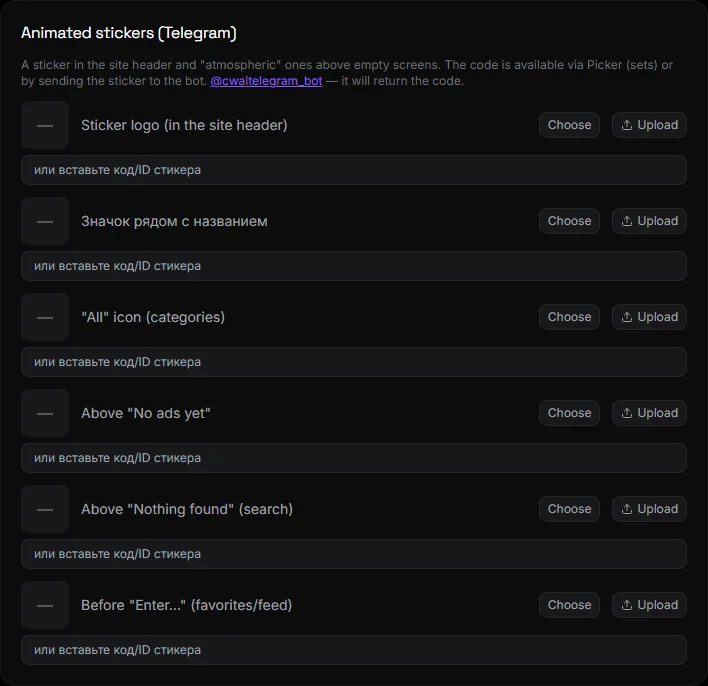
Animated stickers bring your website to life. You can add them:
- Sticker logo is in the website header.
- The "All" icon is in the row of headings.
- Above “No ads yet”, above “Nothing found”, before “Log in…” - on empty screens.
How to get a sticker: Choose from the packs in Picker, upload your image (PNG, JPG, WebP, or GIF—animations are preserved), or send the sticker to the bot. It will return a code; paste it into the field. Stickers for categories are configured in Categories.
Questions and answers#
The logo is cut off or too small. What should I do?#
Upload a PNG with a transparent background and no extra margins around the logo. The logo will be displayed in its entirety, without cropping.
How to change the theme to light?#
Ask the AI assistant to "make the light theme the default." Or apply a light style from the catalog. Visitors can switch the theme in the website menu.
Are my texts and products translated?#
The website interface is translated into 107 languages. Your texts, product names, and descriptions are displayed exactly as you wrote them. Content is automatically translated via an AI assistant upon request.