If your product selection and orders currently live in Telegram and WhatsApp, interspersed with regular messaging, this only needs to be set up once. You can add a new product via a message to the bot from your phone, which will automatically publish it on the website and in the channel. When a customer places an order on the website, a notification will be sent back to your Telegram. Below is what you need for each of these three links and how to enable them.
Why connect Telegram to the site if you already reply via private messages?
Personal messages are fine, as long as there are dozens of requests a day. Then comes the same problem that any growing Messenger store faces: messages get lost in the regular chat, and prices and quantities have to be re-asked. Order history simply doesn't exist—to remember what a particular customer ordered a month ago, you're left scrolling through the chat manually.
This isn't an abstract risk: social media and messaging apps are inconvenient for receiving and processing orders. Messages get lost in the shuffle, and the promise of "I'll send you the terms tomorrow" easily stretches out to a week—and during that time, the client switches to someone else who can simply place an order.
The shopping cart website and the familiar Telegram channel don't compete. Orders are placed on the website, with their status, history, and association with a specific customer, while Telegram remains the same channel where you're already known: it now delivers new products to your subscribers' feeds and notifies them of each sale.
What to prepare before setup
You will need three things:
- Your own bot. Create one in Telegram with @BotFather using the
/newbotcommand and save the token—a long string of numbers and letters that will be shown only once. - Administrator rights. If you accept requests from a group or channel, add the bot as an administrator with the right to read and post messages.
- Source chat_id. A numeric group or channel ID like
-1001234567890- this can be found by the @userinfobot bot or a similar tool.
If you plan to accept requests only via the bot's private messages, you don't need administrator rights; a token is sufficient.
How to add products from Telegram: 4 steps
If you need to update your catalog from your phone without opening your account, there's a reception bot for that. All actions are available in your website account, under Settings → Telegram and WhatsApp.
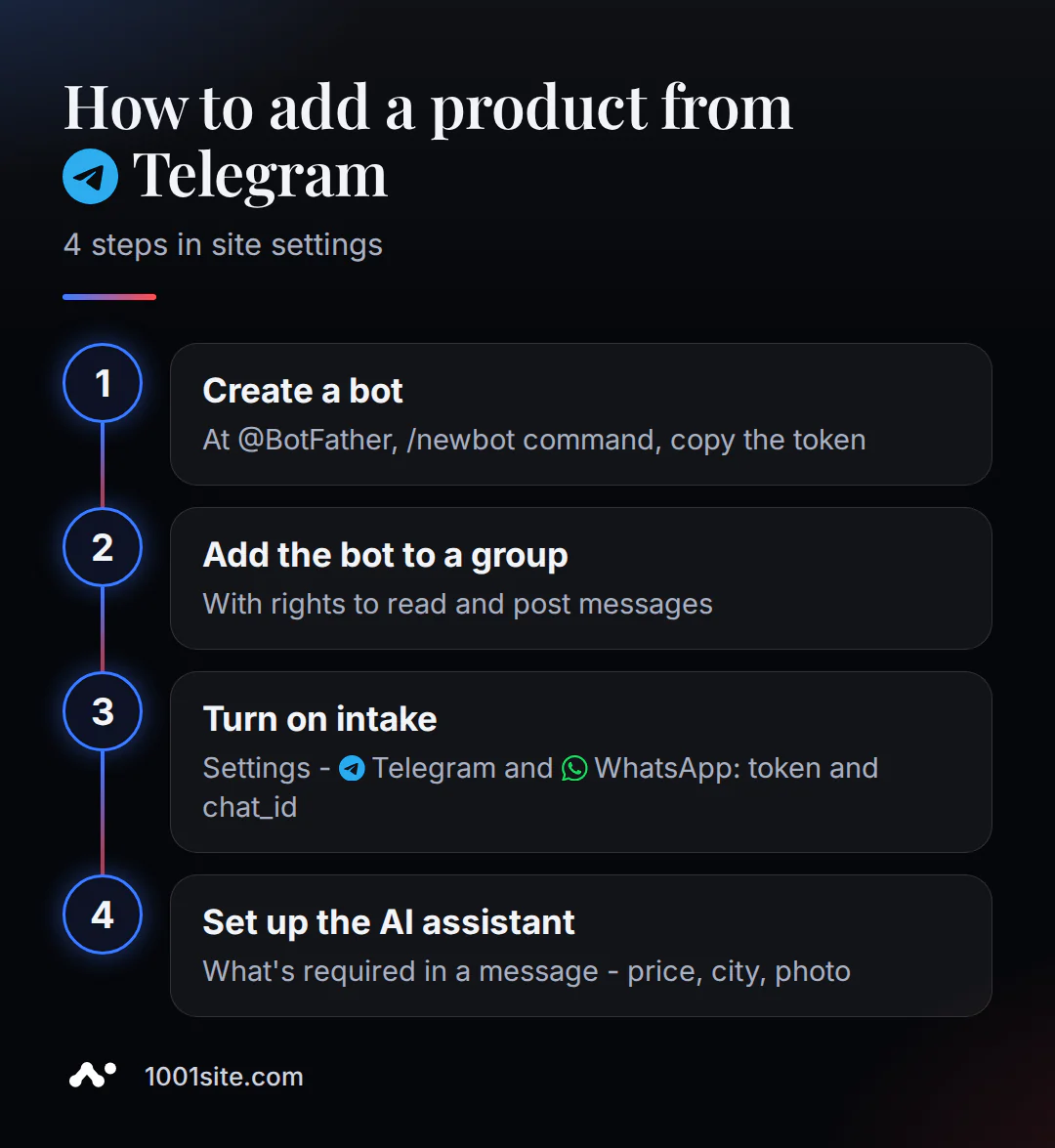
- Connect a source. Select the type (group or channel), paste the bot token and chat_id, click "Add source" – the bot will start reading new messages.
- Enable the bot's private messaging feature if you want to add products directly: in the "Bot private messaging - ad acceptance" section, click "Enable private messaging." Open the bot, click "Start," and send a photo and description in a single message.
- Set up an AI-based acceptance consultant – describe what's essential in your message (price, city, photo). The bot will suggest what's missing and automatically extract the price and title from the text.
- Check. Send a test message to the bot. The product should appear in your account under the "Pending Moderation" tab, or immediately under "Active" if moderation is disabled.
If the plan doesn't include AI, a consultant won't be connected: you select the product category yourself using buttons, and the bot will retrieve the price and title using simple rules without prompts. Visitors to the classifieds board can use this same method—more details in the article about classifieds with AI moderation.
Where does the product go next and where does the order notification come from?
Receiving from a phone and sales notifications are two different settings, and they can be easily confused.
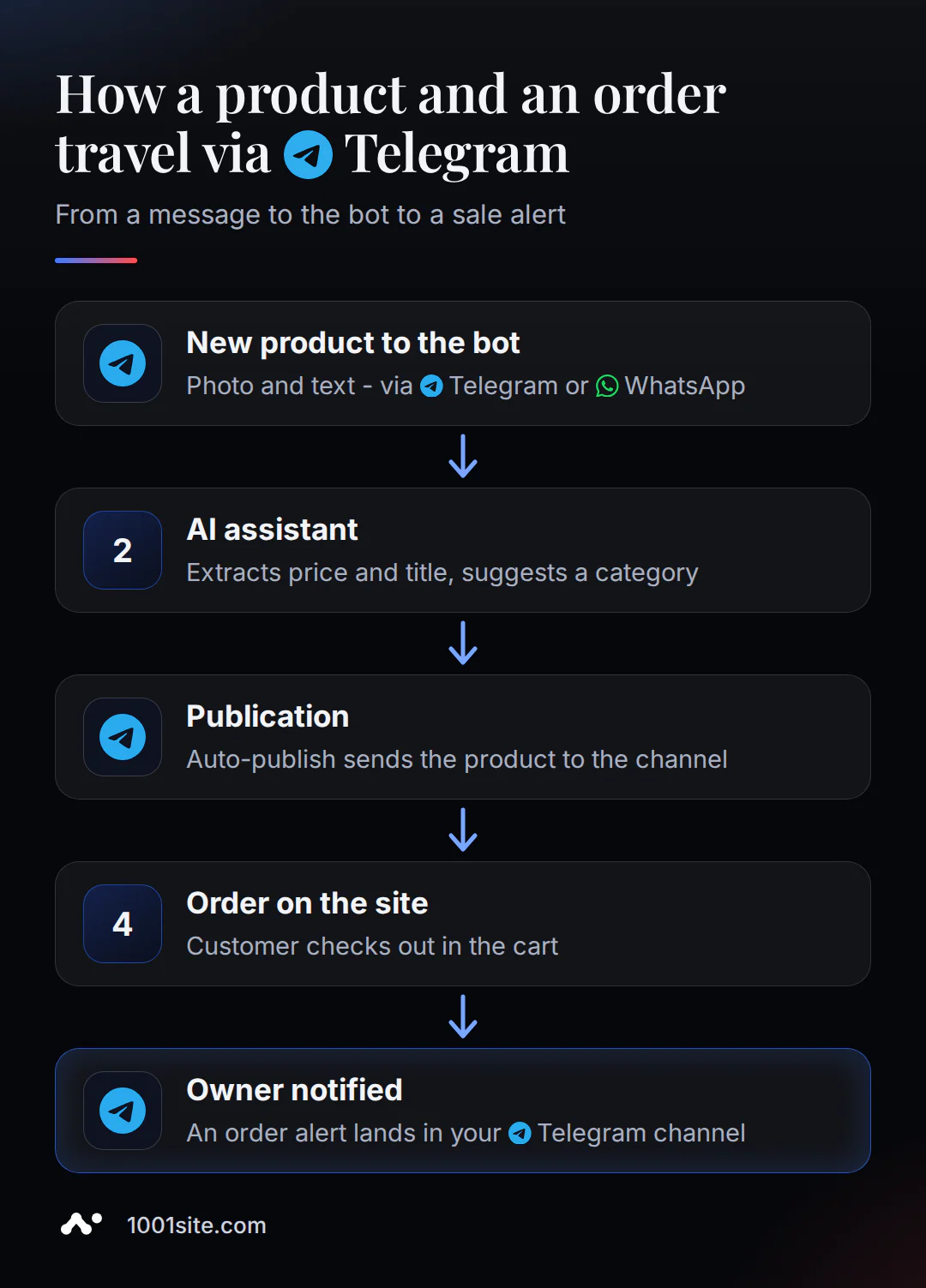
The bot adds the product to the site immediately after you post a message. If moderation is enabled, the product first appears in the "Under Moderation" tab and becomes visible only after you approve it. Once it's published, auto-publishing automatically sends it to your Telegram channel or WhatsApp group—this is a separate setting from receiving, but you can use the same bot token.
Order notifications are structured differently: they're not about products, but about actual purchases. When a customer places an order in their shopping cart on the website, a separate notification is sent to your Telegram channel.
This is configured in the Integrations → Order Notifications section: insert the token and @channel name (you can use the same bot as for auto-publishing) and click "Save." The "Test Connection" button will immediately send a test and a summary for today. This feature works on all plans, including those without AI.
What if clients write on WhatsApp?
Telegram and WhatsApp operate in parallel on the same website—authors receive responses in the messenger they sent the message from. Connecting takes two steps:
- In your account: Settings → Telegram and WhatsApp → " WhatsApp " block → "Connect via QR code".
- On your phone: WhatsApp → Linked Devices → Link Device → Scan the QR code. If the QR code doesn't work, you can link it using a phone number and code.
| Telegram | ||
|---|---|---|
| Connection | Bot token via @BotFather | QR code or phone number, like in WhatsApp Web |
| Applications are being accepted | Group, channel, bot private message | Account groups, private messages |
| Second number/bot | Can I use the same token for receiving and publishing? | Can I have a separate issue for publication? |
| Restrictions | Not described in the documentation | 7-12 second pause between posts and daily limit |
If you have a lot of posts, connect a separate number in the "Post Number" section. This way, the main number only accepts requests, and posts are sent from the second number, reducing the risk of WhatsApp restrictions.
How much does it cost?
Receiving and auto-publishing to Telegram and WhatsApp, an AI consultant, order notifications, and payment processing are included in the "All Inclusive" plan - €45 per month; the first month is €25 with a promo code. There is no trial period or free plan. You can accept payments from buyers via Stripe (worldwide) or Monobank (Ukraine) in the Integrations section, or without online payment, via cash on delivery or your own "Order by Call" button.
You don't have to build a website with this feature from scratch or order it from a developer: 1001site AI will build it to your style in 2-7 minutes after payment, and then all you have to do is connect the bot token and test it with a test message. If you want everything set up for you, including the domain and Telegram / WhatsApp, the "Turnkey" plan (€1,650 one-time payment) is described on the pricing page.
What to do if the bot doesn't respond or post
Most often, the reason is rights or a token: the site itself usually has nothing to do with it.
The bot can't see messages in the group. Check that the bot is a group administrator. For regular groups, the bot must have "privacy mode" disabled for @BotFather ( /setprivacy → Disable) or be an administrator.
The bot isn't posting to the channel. Please check the following: the bot is indeed the channel administrator; the token is valid (check the "Verify Token" button); there's no "channel not confirmed" warning in the auto-posting block; the product has already been published on the website—auto-posting only starts after moderation.
The token is hidden by dots, making it unclear whether it's valid. There's a "Check Token" button in the auto-publishing block—it will display the bot's name if the token is valid. The tokens themselves are stored encrypted on the website.
Sources
- Receiving ads and orders from Telegram - 1001site knowledge base.
- Auto-publishing to Telegram and WhatsApp - 1001site knowledge base.
- WhatsApp: connecting, receiving ads, and publishing - 1001site knowledge base.
- Integrations: payment and order notifications - 1001site knowledge base.
- Online store mode - 1001site knowledge base.
You can see this bundle already assembled in the 1001site AI designer - the style catalog is open for this at any time.