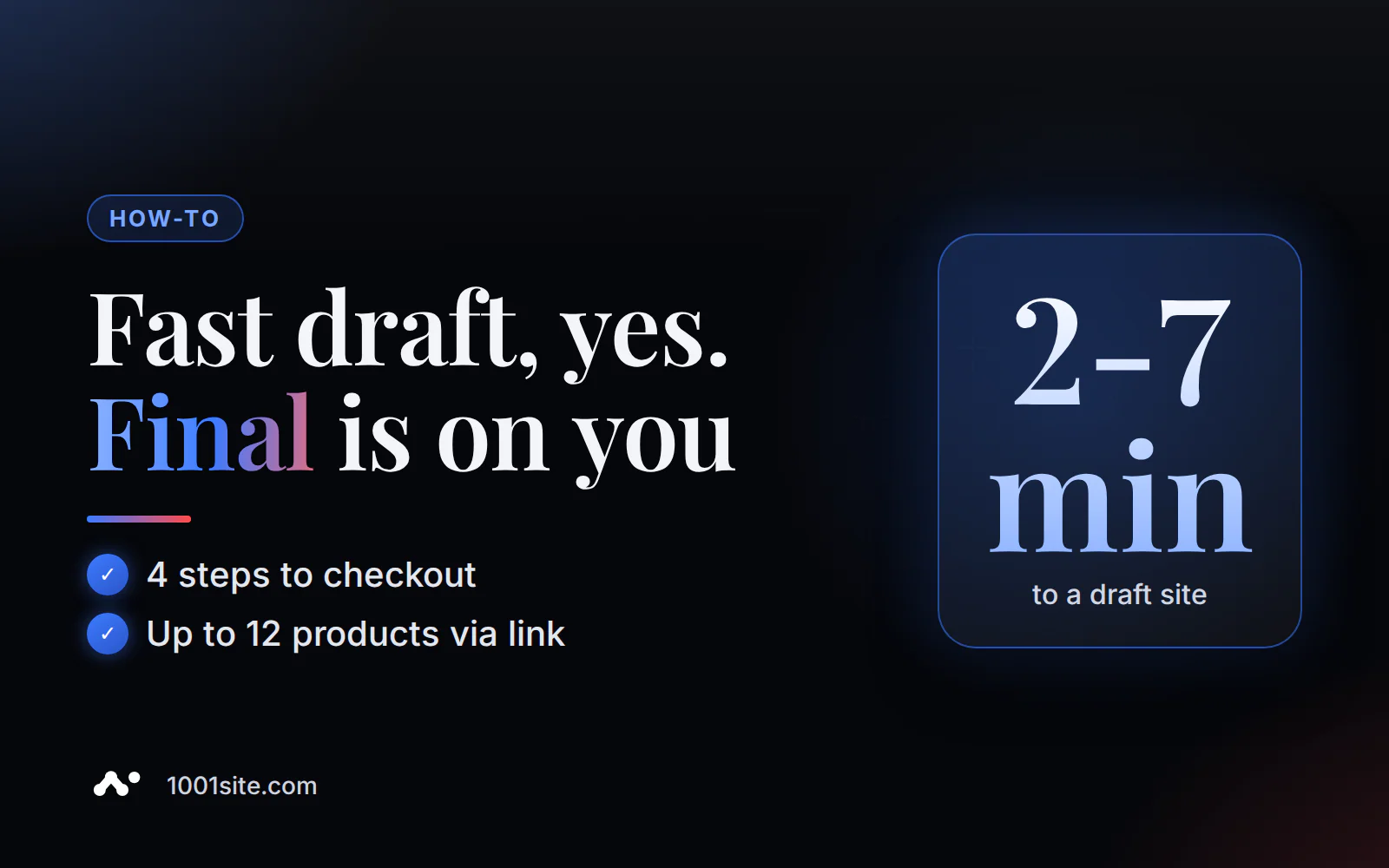
The entire process takes one evening, but not one click. You choose a style from the 1001site.com catalog, click "Create Website," and complete a four-step pop-up: style, site type, link or business description, pricing, and payment. After payment, the AI agent creates your homepage and internal pages in the chosen style in 2-7 minutes.
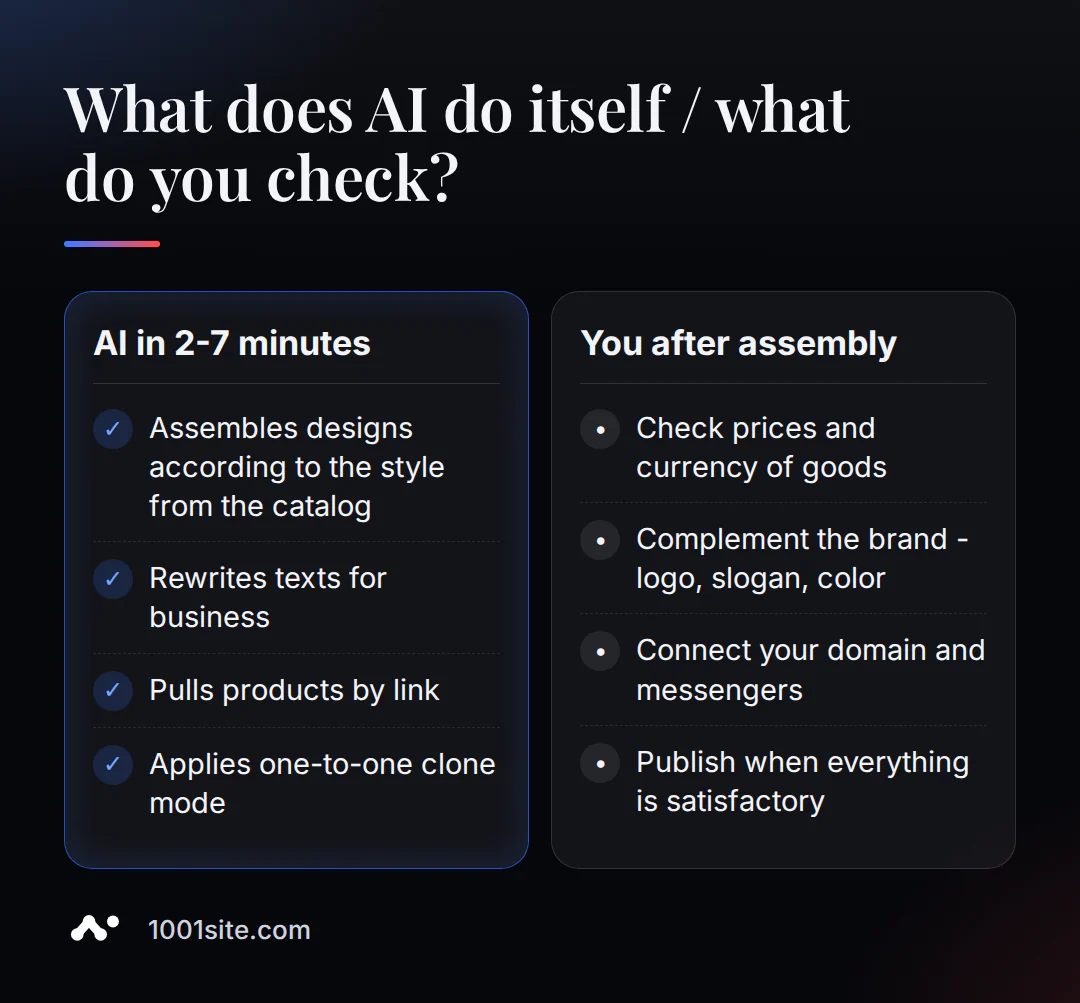
Next, the dashboard opens—five more steps to get your website ready for publication: mode, homepage, content, pages and menu, and branding. What you get in these 2-7 minutes is a clean draft, tailored to your style, not a website ready for sales: you still need to check prices, products, and wording yourself.
What will you get in these 2-7 minutes, and what will you get is just a draft?
AI rebuilds the design and rewrites texts according to the selected style in 2-7 minutes – this is confirmed by two sources 1001site (product documentation and the pricing page). But this is just a starting version – you'll need to develop it into a sales-ready website yourself.
This is how any agent-based AI website builder works in 2026, not just 1001site AI. Durable creates a draft in about 30 seconds, while GoDaddy Airo, Wix, and Hostinger produce it "within minutes" after a short business description, without providing an exact figure in their official materials. Shopify puts it more bluntly in its blog: "The output is a first draft, not a finished business asset. Store owners still review layout, copy, product details, SEO settings, and brand fit before publishing" (Shopify Blog, "AI website builder"). 1001site AI follows the same principle: quickly get what a designer and copywriter used to produce, and then comes your final review.
How to choose a style - and what exactly will "clone mode" copy?
In a catalog of 1,000+ styles, you search for an example by brand name, color, or category, open a card, and click "Apply"—the design is pulled up in seconds, and AI then rebuilds the homepage and pages to match.
Clone mode replicates the design language of the template—layout, fonts, button rounding, animations, and color palette. Your text, products, and photos remain yours: the AI rewrites the content for your business and doesn't insert images from other websites. You can change the style as many times as you like, and after payment, the previous block is simply replaced with the new one, with no additional charge. A detailed breakdown is available in the knowledge base: "Styles from the 1001site catalog."
If a freelancer or studio is creating a website for a client, this detail will come in handy: each style in the catalog has DESIGN.md files, a Tailwind theme, and CSS variables. These can be given to Claude or ChatGPT with the command "make in this style"—this is the same reference used by the built-in AI assistant.
What to enter in the "Create a website" pop-up: 4 steps from style to payment?
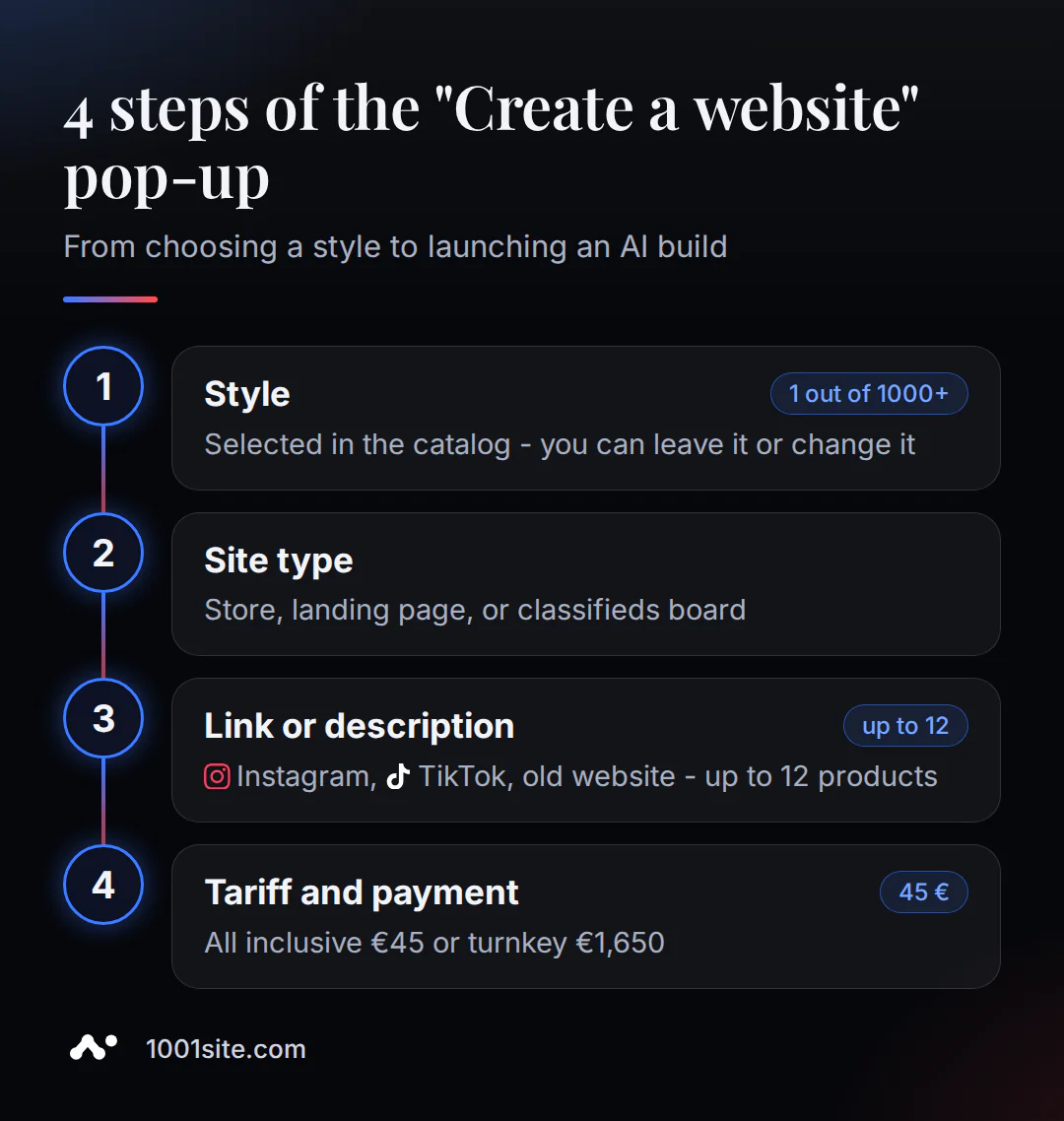
The "Create a Website" pop-up opens with a button on the style page or on 1001site.com and consists of four steps: style, site type, link or description, plan, and payment.
- Style. If you came from the catalog, it's already selected and inserted into the popup. You can move on immediately or go back and try another example.
- Website type. Three profiles: online store, landing page, or classifieds board. You can change the profile later in your account without losing your data.
- Link or description. Paste the address of Instagram, TikTok, Facebook, old website, or public Telegram channel—the AI analyzes it and extracts the name, logo, description, contact information, and up to 12 products. If there's nothing to transfer, simply describe the business in words.
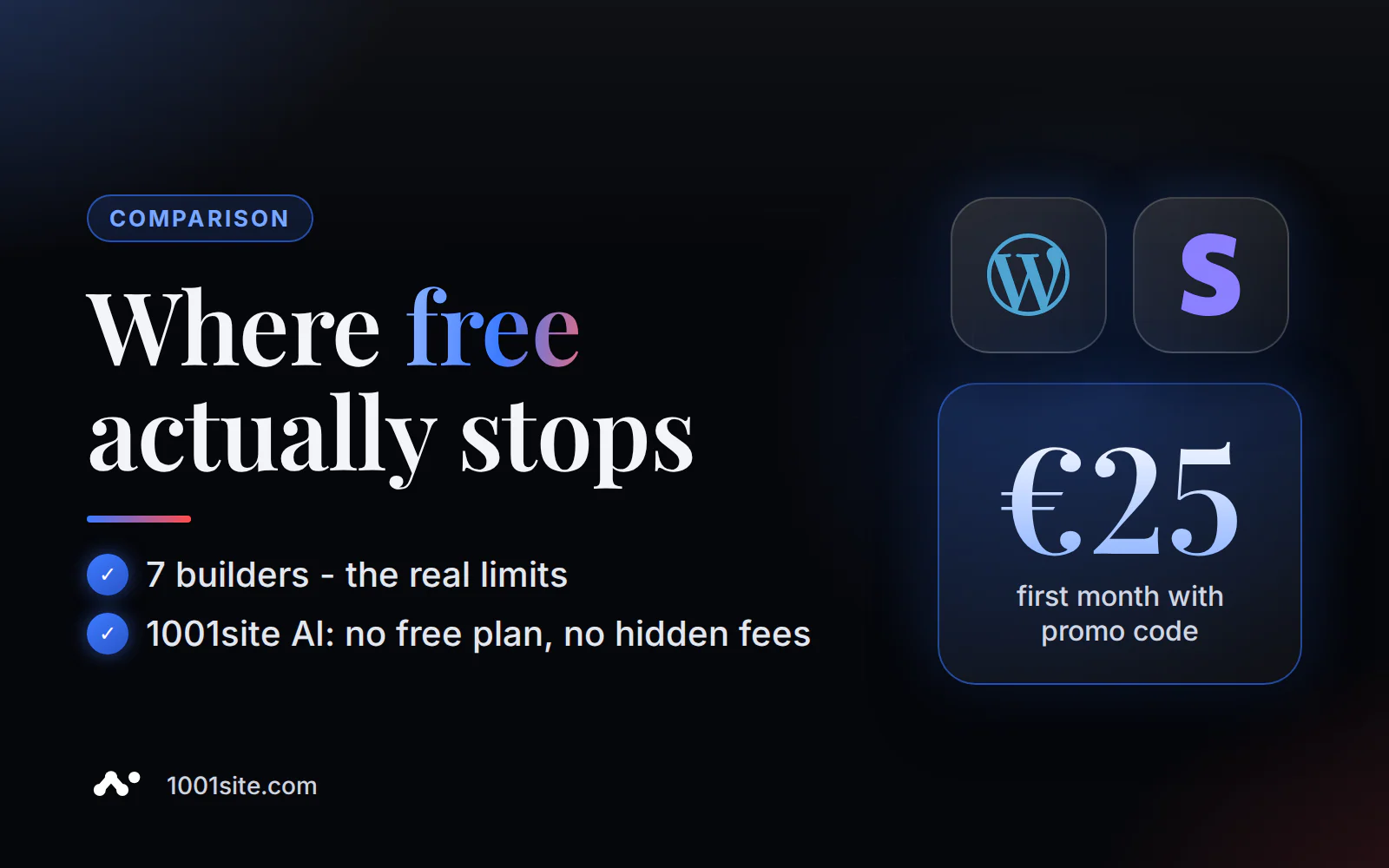
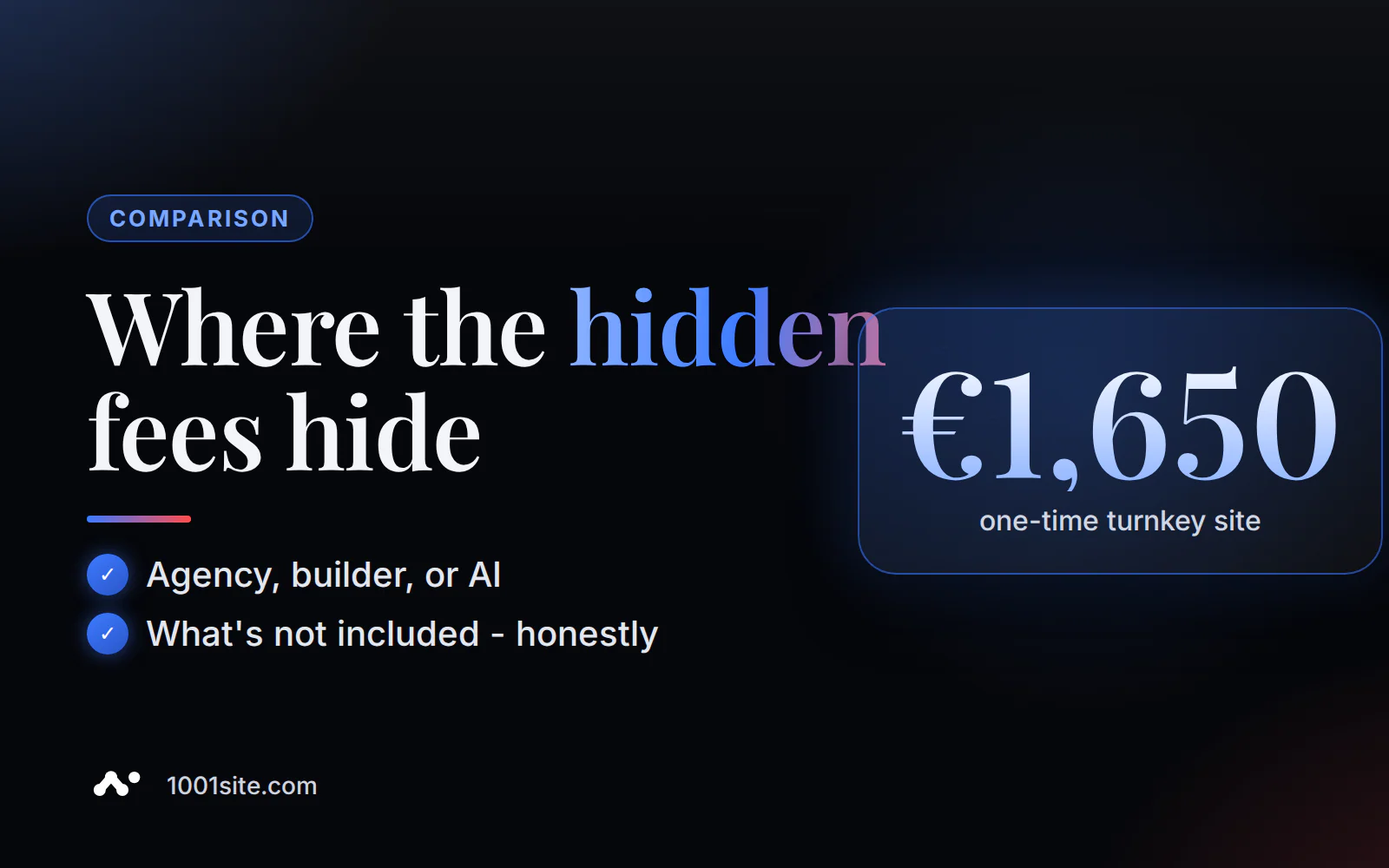
- Tariff and payment. Choose "All Inclusive" (€45 per month, first month off €25 with promo code, card payment via Stripe) or "Turnkey" (€1,650 one-time payment, website set up for you, communication via WhatsApp or Telegram).
The "Create Website" button is available on any style card on 1001site.com and leads to the same popup. After payment, the products from step 3 are uploaded to the catalog, and the AI agent assembles the homepage and pages in the selected style in 2-7 minutes—the exact minutes mentioned above.
What does AI take from a link from Instagram, TikTok, the old website, or Telegram?
When ordering from a website, the AI automatically finds up to 12 products via a link; after payment, you can add the rest in your account—up to 30 by default, with a maximum of 100 products per request.
| Source | What to insert | What will happen? |
|---|---|---|
| Any website | store address or product page | Name, description, price, currency, photo, availability, variations |
| Feed (YML/RSS/Atom) | link to feed | All products in the feed with supplier categories |
| TikTok | link to video or profile | signature and cover, price from signature |
| link to post or Reels | text, photo, price from the caption | |
| link to a post, video, or Reels | text, photo, price from the caption | |
| Telegram | link to a public channel | Recent posts become products with photos |
Instagram profiles and Facebook pages cannot be viewed entirely without logging in—please send links to individual posts or Reels. Photos are downloaded to the site's own storage, up to three per product—they don't remain links to another resource. Re-posting the same link doesn't create duplicates: each product's external source ID is remembered, and prices and stock are simply updated.
On the "All Inclusive" plan, link transfer requires a dedicated Gemini key (Settings → AI and MCP) – without a key, the AI won't parse posts and categories. For details and format restrictions, see the knowledge base article "Transferring Products via Link."
What happens in the account guide after payment?
After payment, the site opens in a guided tour with 5 steps (mode, homepage, content, pages and menu, branding). Progress is saved in the browser, and you can skip and return freely.
- Mode. Same choice as in the pop-up – online store, landing page, or classifieds; clicking on the card is saved immediately.
- Home. Upload a photo for your hero block, choose or change the style, and enable or disable the product/ad feed on the home page.
- Filling out the form. Use the same link-based transfer mechanism as in the pop-up, or use the "I'll fill it out myself" option—tell the assistant about your business in words, and you can attach a photo.
- Pages and Menus. With a single phrase, "Contacts and About Us," the AI creates website-style pages and adds them to the menu; order and nesting are controlled by drag-and-drop.
- Branding. The name, slogan, logo, and corporate color are the only step where you need to click "Save"; the rest are saved automatically.
You can close the guide at any step and reopen it through the dashboard menu—your progress won't be lost. Afterward, open the website on your phone, enable applications in Telegram and WhatsApp, and navigate to your domain. All the steps are in the knowledge base: "Guide: Website Setup in 5 Steps."
Which mode is best for your business: a store, a landing page, or a classifieds board?
An online store is suitable if you sell products yourself; a classifieds board is suitable if visitors post ads; and a landing page is suitable if you need a business card website or blog without a shopping cart.
| Mode | Who is it suitable for? | What makes it different |
|---|---|---|
| Online store | clothing, appliances, spare parts, and services store with a price list | Shopping cart and ordering without registration, payment via Stripe and Monobank, feed for Google Merchant Center |
| Landing | business card website, services, portfolio, company blog | Homepage blocks, custom pages, and a feed of posts like in Threads (can be disabled) |
| Bulletin board | City flea market, auto dismantling, community announcements | Ads are submitted by visitors, moderation and AI moderation, earnings from promotion |
You can change the mode later in the settings—data won't be lost—but it's best to decide at the start: your choice determines which guide steps will appear. If you specifically need managed ad moderation, see the article "A Classifieds Board with AI Moderation" for a separate discussion.
What are beginners afraid of - and what is true?
The main fears are template-based design, weak SEO, and being tied to someone else's subdomain. Some of these concerns have been confirmed by practice, while others can be alleviated at the start if you take the time to write a brief business description.
The most common fear is that "the website will look cookie-cutter, like everyone else's." This isn't unfounded. One Hacker News user wrote about typical AI websites: "An AI website will look about as unique as Facebook Facebook in 2004" (rchaud, Hacker News, thread "Our New AI Website Builder"). This eliminates the initial choice: clone mode pulls a specific reference from a catalog of 1,000+ styles. There's no generic template here—the more precise the style and business description, the further the result will be from the "hospital average."
The second fear is SEO. An independent analysis from 2026 puts it frankly. "Most AI website builders are SEO-safe, but very few are SEO-strong" (Anangsha Alammyan, Substack, "Are AI Website Builders Actually Good for SEO in 2026?"). 1001site AI automatically collects the technical components—sitemap, microdata, server-side rendering—but this is a start, not a guarantee of rankings. Read more about visibility in AI search in the article "GEO for a Small Business Website."
Three typical mistakes on your first attempt. The first is a vague business description at the beginning: the AI fills in the blanks for you, and the shorter the brief, the more general the text. The second is relying on a free plan without checking its limits: 1001site AI doesn't offer such a plan at all, only a promo code for the first month. The third is publishing the website immediately after transferring products, without checking prices and currency.
How much does it cost and when does payment start?
"All Inclusive" costs €45 per month (€25 for the first month with a promo code), and "Turnkey" costs €1,650 per month. There's no free plan or trial period—the site launches immediately after payment.
The "All Inclusive" plan costs €45 per month and covers the entire package: no additional charges for the domain, SSL, Telegram and WhatsApp application processing, or 107 interface languages—all of these are included in one price. A current promo code reduces the first payment to €25; the link in the style catalog automatically includes this code, and the price returns to normal from the second payment. Cancellation is available at any time from your account, and the site remains fully functional for the time already paid.
There's also a way to avoid building it yourself: pay €1,650 one-time for a "Turnkey" solution and receive the full result from the team. Your share then comes down to purchasing a domain, and a year of hosting is included free.
There's no free access at all—no trial days, no limited version. Payment unlocks full access immediately, and the money you pay is non-refundable, even if you change your mind about finishing the site. For a detailed breakdown of how it compares to other free website builders, see the article "Free Website with AI: What You Get and Where to Start Paying." You can create a website and go through the entire process at 1001site.com /#create.
Sources
- Styles from the 1001site catalog - knowledge base
- Transferring goods via link - knowledge base
- Guide: Setting Up a Website in 5 Steps - Knowledge Base
- Rates, payment, and promo code of the month - knowledge base
- Shopify Blog - AI website builder
- GoDaddy Blog - Build a small business website in minutes with Airo AI Builder
- Durable Blog - Introducing the new Durable
- Wix Blog - Why prompt a website? The smarter way to build online
- Hostinger - AI Website Builder
- Anangsha Alammyan, Substack - Are AI Website Builders Actually Good for SEO in 2026?
- Hacker News - Our New AI Website Builder